事前準備
プロジェクトを作成する
まずはXcodeでプロジェクトを作成します。
既存のプロジェクトにSDKを追加する場合にはこの工程は不要です。
本ガイドでは、代表例としてiOSのAppテンプレートを選択しています。
オプションのProduct Name、Team、Organization Identifierなどは、実際に使用される値に置き換えてプロジェクトを作成してください。
本ガイドは、InterfaceにStoryboardを採用した構成となっています。
SDKをダウンロードする
FANSHIP管理画面へログインした後に、Xcode13用のSDKをダウンロードしてください。
ZIP展開されたディレクトリ配下のlibがプロジェクトに追加するSDKです。
SDKをプロジェクトに追加する
SDK追加の例として、ドラッグ&ドロップによる追加方法を紹介します。
この方法の場合、Destination: ✅ Copy items if needed にチェックを付けてください。
必須フレームワークを追加する
動画の操作を参考に、Target > General > Frameworks, Libraries, and Embedded Content にて以下のフレームワークを追加してください。
- CoreData.framework
- CoreLocation.framework
- CoreTelephony.framework
- SystemConfiguration.framework
- UserNotifications.framework
前項で追加されたSDKも含めて以下のような構成となることを確認してください。
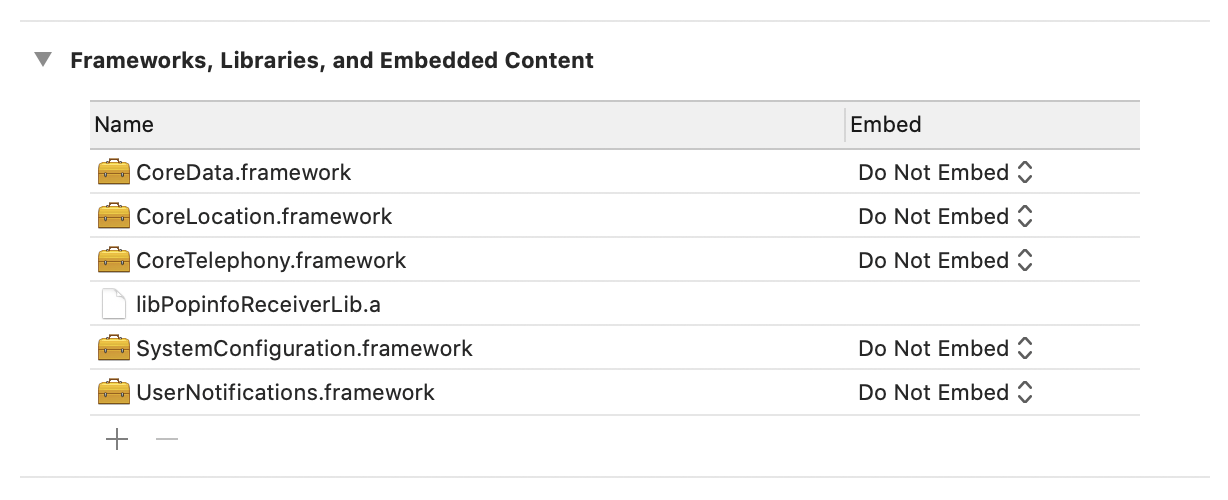
Embedオプションは画像の通り Do Not Embed を指定してください。
SDKのmodulemapを設定する
SDKに含まれるmodulemap(lib/Module/PopinfoReceiver/module.modulemap)へのPathを、
Build Settings > Swift Compiler > Search Paths > Import Paths に指定します。
動画の操作では Import Paths に以下の文字列を設定しています。
$(PROJECT_DIR)/SampleSwift/lib/Modules/PopinfoReceiver
指定する文字列に module.modulemap 自体が 含まれていない ことに注意してください。
SampleSwift/lib/ の箇所は、実際のディレクトリ構成に置き換えてください。
正しく設定されていると、動画のようにmodule.modulemapに記述されたheaderファイルがimport出来るようになります。
動画ではAppDelegate.swiftでPopinfoReceiverをimportしています。
Bridging Header を用いる場合
Clang Modules ではなく、本SDK付属の Popinfo-Bridging-Header.h 経由で import する場合は、 Build Settings > Swift Compiler - General の Objective-C Bridging Header に Popinfo-Bridging-Header.h へのパスを指定します。
Capabilityを追加する(Push Notifications)
プッシュ通知はFANSHIP SDKに必須の機能です。
Capabilityを追加する画面からPush Notificationsを検索して追加してください。
Warning
他の目的で使用する場合を除き、ビルドするプロジェクトの TARGETS > Capabilities > Background Modes において「Remote notifications」に チェックは入れないでください。
これは「Background Notifications」(サイレントプッシュ)を利用可能にするオプションで、FANSHIPはサイレントプッシュ通知を利用しません。
アプリケーションIDを設定する
lib/PopinfoConfiguration.mを編集します。
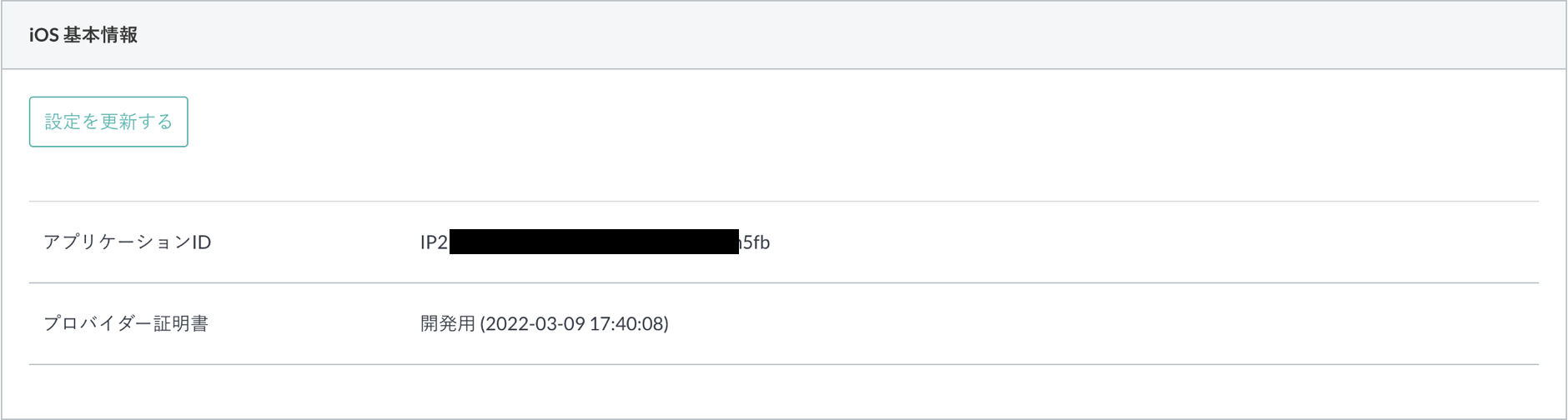
FANSHIP配信管理画面から iOS 基本情報 > アプリケーションID を探して以下の場所にコピー&ペーストしてください。
// アプリケーションIDの指定
NSString *const popinfoApplicationID = @"ReplaceYourPopinfoApplicationID"; // 指定すべきアプリケーションID文字列は、popinfo配信管理画面からご確認ください。
PopinfoReceiverクラスをインスタンス化する
AppDelegate.swiftに以下のコードを追加してください。
// PopinfoReceiverをインポート
import PopinfoReceiver

@main
// PopinfoReceiverDelegateの追加
class AppDelegate: UIResponder, UIApplicationDelegate, PopinfoReceiverDelegate {
    func application(_ application: UIApplication, didFinishLaunchingWithOptions launchOptions: [UIApplication.LaunchOptionsKey: Any]?) -> Bool {
        // Override point for customization after application launch.

        // インスタンスの初期化、デリゲートの設定
        PopinfoReceiver.shared.delegate = self
        return true
    }
}
サーバーから設定情報を取得する
SceneDelegate採用時はSceneDelegate.swiftのfunc sceneDidBecomeActive(_ scene: UIScene){}に、
そうでない場合はAppDelegate.swiftのfunc applicationDidBecomeActive(_ application: UIApplication){}に以下のコードを追加してください。
// PopinfoReceiverをインポート
import PopinfoReceiver

@main
// PopinfoReceiverDelegateの追加
class AppDelegate: UIResponder, UIApplicationDelegate, PopinfoReceiverDelegate {
    func applicationDidBecomeActive(_ application: UIApplication) {
        // サーバーから設定情報を取得する
        PopinfoReceiver.shared.loadSettings()
    }
}
// PopinfoReceiverをインポート
import PopinfoReceiver

@available(iOS 13.0, *)
class SceneDelegate: UIResponder, UIWindowSceneDelegate {
    func sceneDidBecomeActive(_ scene: UIScene) {
        // サーバーから設定情報を取得する
        PopinfoReceiver.shared.loadSettings()
    }
}
デバイストークンを登録する
AppDelegate.swiftに以下のコードを追加してください。
// PopinfoReceiverをインポート
import PopinfoReceiver

@main
// PopinfoReceiverDelegateの追加
class AppDelegate: UIResponder, UIApplicationDelegate, PopinfoReceiverDelegate {
    func application(_ application: UIApplication, didFinishLaunchingWithOptions launchOptions: [UIApplication.LaunchOptionsKey: Any]?) -> Bool {
        // Override point for customization after application launch.

        // インスタンスの初期化、デリゲートの設定
        PopinfoReceiver.shared.delegate = self
        return true
    }

    func application(_ application: UIApplication, didRegisterForRemoteNotificationsWithDeviceToken deviceToken: Data) {
        // デバイストークンを登録する
        PopinfoReceiver.shared.registerToken(deviceToken)
    }
}
Warning
デバイストークンが登録されていない場合、プッシュ通知を受け取ることが出来ません。
また、後述するテスト受信端末登録操作に失敗します。
ビルドできるか確認する
XcodeによるCompile Errorが出ていないことを確認したら、Product > Build を選択してください。
Build Succeeded となればSDKが正しく組み込まれたということになりますので、事前準備は完了です。
Build Failed となった場合は次項を参考にしてください。
ビルドに失敗した場合
該当するものがないか確認してください。
Deployment TargetをiOS 13.0未満に設定している場合
このケースに該当する場合
@available(iOS 13.0, *)
を以下の箇所に追加する必要があります。
// MARK: UISceneSession Lifecycle
@available(iOS 13.0, *)
func application(_ application: UIApplication, configurationForConnecting connectingSceneSession: UISceneSession, options: UIScene.ConnectionOptions) -> UISceneConfiguration {
    // Called when a new scene session is being created.
    // Use this method to select a configuration to create the new scene with.
    return UISceneConfiguration(name: "Default Configuration", sessionRole: connectingSceneSession.role)
}

@available(iOS 13.0, *)
func application(_ application: UIApplication, didDiscardSceneSessions sceneSessions: Set<UISceneSession>) {
    // Called when the user discards a scene session.
    // If any sessions were discarded while the application was not running, this will be called shortly after application:didFinishLaunchingWithOptions.
    // Use this method to release any resources that were specific to the discarded scenes, as they will not return.
}
@available(iOS 13.0, *)
class SceneDelegate: UIResponder, UIWindowSceneDelegate {
    // 省略
}
必須フレームワークが追加されていない場合
必須フレームワークを追加するを参考に、追加されていないものがないか確認してください。
事前準備の段階では、以下のフレームワークが追加されていない場合にビルドが失敗します。
- CoreTelephony.framework
- libPopinfoReceiverLib.a
- SystemConfiguration.framework
libPopinfoReceiverLib.aが追加されていない場合は動画の操作を参考にして追加してください。
SDKのmodulemapが設定されていない場合
SDKのmodulemapを設定するを参考に、Import Paths に設定した値を見直してください。